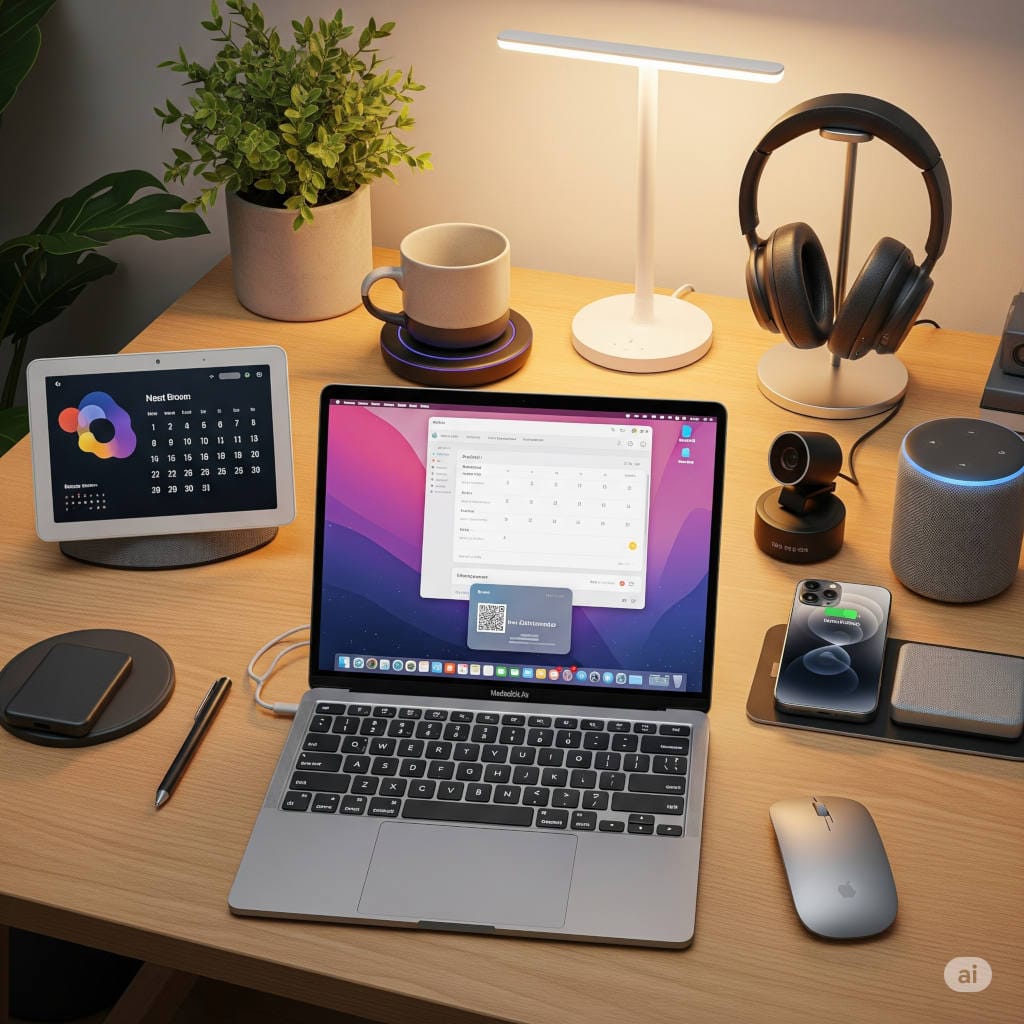
Working from home has become the new normal for millions of professionals, and with it, the importance of having a comfortable, productive workspace has skyrocketed. While laptops are convenient and portable, relying on a small screen for eight or more hours a day can strain your eyes, neck, and productivity. That’s why upgrading to a large, high-resolution monitor is one of the smartest investments you can make for your home office.
Among all the monitor sizes and resolutions available today, 32-inch 4K monitors stand out as a practical sweet spot. They offer generous screen real estate without overwhelming your desk and provide extremely sharp text and visuals that make long work sessions easier and more enjoyable. Even better, you don’t need a sky-high budget to get a great one—there are several affordable models that deliver excellent performance for everyday professional use.
This comprehensive guide walks you through everything you need to know: why a 32-inch 4K display might be the perfect addition to your work-from-home setup, what features to look for, which affordable models are worth considering, how to optimize the display for comfort, and how to create a workspace that boosts productivity.
Why a 32-Inch 4K Monitor Is the Ideal Size for Remote Work
A 32-inch monitor might seem large if you’re used to a small laptop, but once you try it, the benefits become immediately obvious. Here’s why this size and resolution combination works so well for work-from-home setups:
More Workspace Without Feeling Cluttered
At 32 inches, you get enough room to comfortably place multiple windows side-by-side. You can have your email open next to your spreadsheet, presentation, browser, or coding environment—all without constantly switching between tabs.
This multi-window capability alone can significantly boost productivity, especially for jobs that involve research, content creation, programming, data analysis, accounting, or frequent collaboration.
Crystal-Clear Text and Images
A 4K resolution packs 3840 × 2160 pixels into the screen. That means everything—from letters in Word documents to tiny lines of code—looks sharp and clean.
If you often read or write long documents, analyze charts, or edit images, the increased clarity reduces eye strain and can make your work feel much easier.
Comfortable Viewing Distance
A 32-inch screen allows you to sit at a natural distance—roughly 24 to 36 inches—without having to lean forward to see small details. This promotes better posture and reduces neck strain, something remote workers commonly struggle with.
Better Than a Traditional Dual-Monitor Setup
Many people jump to dual monitors for productivity, but a single 32-inch 4K display can often replace two smaller screens. It keeps your setup cleaner, reduces cable clutter, and creates a seamless visual experience without bezels breaking up your workspace.
Large Enough for Work, Small Enough for Most Desks
While ultrawide monitors are popular, they require deeper desks and more space. A 32-inch flat or curved monitor usually fits well even on compact home office desks.
Key Features to Look for When Choosing an Affordable 32-Inch 4K Monitor
Not all monitors are created equal, especially in the budget category. Before buying one, it’s important to understand which features matter most for productivity, eye comfort, and ease of use.
Below are the essential factors to consider:
1. Panel Type: IPS vs VA vs OLED
Each panel technology has strengths and weaknesses:
IPS Panels
Best overall for color accuracy
Wide viewing angles
Consistent brightness across the screen
Great for video calls, design work, reading, and editing
Ideal for most home office professionals
VA Panels
Higher contrast and deeper blacks
Good for mixed use (work + entertainment)
Slightly narrower viewing angles than IPS
Usually more affordable
OLED / QD-OLED Panels
Stunning contrast and colors
Perfect blacks
Premium price—not typically considered “affordable”
Not necessary for most remote workers
For most work-from-home professionals, IPS is the safest and most versatile choice.
2. Connectivity Options
Look for a monitor that supports:
DisplayPort (most reliable for 4K at 60Hz or 120Hz)
HDMI (for laptops, consoles, or docking stations)
USB-C with power delivery (for single-cable laptop connectivity)
USB hub (convenient for keyboard, mouse, or webcam)
If your laptop supports USB-C, a monitor with USB-C power delivery can eliminate the need for a separate charger.
3. Color Accuracy and Gamut
Even if you don’t work in graphic design, a monitor with good color accuracy makes everything look more natural and easier on the eyes.
Look for:
At least 95% sRGB coverage
Optional: 90%+ DCI-P3 if you do creative work
4. Refresh Rate (If You Also Game)
Most affordable 32-inch 4K monitors offer 60Hz, which is perfectly fine for productivity.
If you also enjoy gaming, consider a model with 75Hz or 120Hz, though these tend to cost more.
5. Ergonomics and Build Quality
A height-adjustable stand is extremely helpful for preventing neck and shoulder strain.
Key ergonomic features include:
Height adjustment
Tilt adjustment
Swivel
Rotation
VESA mount compatibility (for monitor arms)
6. Anti-Glare Coating and Brightness
A matte, anti-glare coating helps reduce reflections if your office has windows or bright lights.
For brightness, 300 to 350 nits is enough for most indoor environments.
The Best Affordable 32-Inch 4K Monitors for Remote Work
Here are some value-packed options commonly recommended for professionals needing a high-quality monitor without stretching their budget. These models are widely known for offering great image quality, reliability, and ergonomics at approachable prices.
This curved 32-inch 4K VA monitor is known for its immersive viewing experience and strong contrast.
Why it’s great:
1800R gentle curve
Rich contrast for deeper blacks
Sleek, premium look
Great for multitasking and entertainment
Often discounted
Ideal for users who want a mix of productivity and media enjoyment.
Samsung, Philips, Acer, ASUS Budget Alternatives
Each year, several brands release new budget 32-inch 4K monitors with slightly different design languages and feature sets. These displays often come in at lower prices than the LG or Dell options while still offering excellent value.
Typically, these models include:
IPS or VA panels
HDMI + DisplayPort
Basic height-adjustable stands
Good sRGB color coverage
Affordable pricing suitable for first-time buyers
These monitors are widely reviewed as solid work-from-home options, especially during seasonal sales.
IPS vs VA: Which Should You Choose?
Here’s a more detailed comparison to help you decide:
Choose IPS if you:
Want accurate, consistent colors
Work with design, editing, or color-sensitive content
Want wide viewing angles
Often share your screen or collaborate over video
Choose VA if you:
Prefer deeper blacks and higher contrast
Use your monitor for movies and entertainment after work
Want slightly better pricing
Don’t mind narrower viewing angles
For most work-from-home professionals, IPS wins, but VA can be a fantastic choice for mixed productivity and entertainment.
Why USB-C Can Transform Your Home Office Setup
If you’re using a laptop, especially a MacBook or a modern Windows ultrabook, USB-C connectivity on your monitor can be a game changer.
With a single cable, you can:
Connect your laptop to the monitor
Charge your laptop
Power your keyboard, mouse, webcam (via USB hub)
Reduce desk cable clutter
This turns your monitor into a docking station and creates a clean, minimalist workspace.
If your preferred monitor doesn’t include USB-C, consider using an external USB-C docking station. It works just as well, though it adds one extra device to the desk.
Ergonomic Tips: Make Your 32-Inch Monitor Work for You
Upgrading your monitor won’t help much if it’s placed incorrectly. Use these tips to maximize comfort:
1. Place the top of the screen at or slightly below eye level
This helps reduce neck strain and keeps you from hunching forward.
2. Sit at a comfortable viewing distance
For a 32-inch monitor, most people find 24 to 36 inches ideal.
3. Adjust brightness to match your room
Too-bright screens cause fatigue. A comfortable brightness level should be similar to the room’s ambient lighting.
4. Use an adjustable monitor arm
A monitor arm frees desk space and provides more flexibility for height, angle, and distance.
5. Enable blue light reduction modes
These warm the screen during evening hours, helping with eye comfort and reducing sleep disruption.
Color Calibration and Display Tuning Tips
Even affordable monitors can produce excellent color accuracy with some light tuning.
Recommended steps:
Use the sRGB preset for accurate color in most productivity apps.
Adjust brightness to appropriate levels for your environment (usually 30–50%).
If you work with color, invest in a colorimeter to calibrate your display.
Turn off unnecessary image “enhancements” that distort natural color.
Use OS-level scaling:
Windows: 125–150%
macOS: Scaled options or “Default for display”
Proper calibration can make text sharper, colors more natural, and long work sessions more pleasant.
Affordable Price Expectations: What “Budget” Really Means
Prices vary by region, but most affordable 32-inch 4K monitors fall into a mid-range cost category. You don’t necessarily need a premium budget to get an excellent display—many work-friendly models offer impressive value.
Monitor pricing can fluctuate due to supply, seasonal promotions, and new releases. Shopping around during peak sale periods such as back-to-school or holiday sales can help you get the best price.
Choosing the Right Model for Your Job and Workflow
Different professionals may prioritize different features. Here’s a breakdown:
For General Office & Business Professionals
IPS panel
Height-adjustable stand
Reliable color and viewing angles
Optionally USB-C
Great for email, spreadsheets, presentations, and online meetings.
For Designers, Editors, and Creative Professionals
IPS panel with high sRGB or wide color gamut
Ability to calibrate accurately
Uniform brightness and minimal color shift
Even budget monitors can handle light creative work with proper calibration.
For Programmers and Developers
Large screen area for multiple windows
High resolution for crisp text
Flicker-free technology
Comfortable scaling
A 32-inch 4K display showcases more code at once and helps reduce visual fatigue.
For Hybrid Users (Work + Entertainment)
VA panel for deeper contrast
Curved option for immersion
Solid brightness and color accuracy
These displays double as excellent movie or casual gaming screens.
For Laptop-Only Professionals
USB-C monitor with power delivery
Built-in USB hub
Minimal setup effort
Clutter-free workspace
This creates a seamless laptop docking experience.
Practical Buying Tips to Avoid Bad Purchases
To make sure you choose a monitor that enhances your setup rather than complicates it, keep these tips in mind:
1. Read real user reviews
Professional reviews focus on measured performance, but user reviews often reveal practical issues like stand stability, backlight bleed, or build quality.
2. Confirm return policies
Large panels can sometimes arrive with dead pixels or uneven lighting. A good return policy avoids headaches.
3. Check included cables
Not all monitors include the necessary DisplayPort or USB-C cables. Be prepared to buy one if needed.
4. Look at warranty terms
A longer warranty can make even an inexpensive monitor a safer long-term investment.
5. Don’t overspend for unnecessary features
If you just need a monitor for office tasks, don’t pay extra for gaming features like high refresh rates or HDR certifications.
Setup Checklist for a Perfect Work-From-Home Display
Once your new monitor arrives, follow this setup checklist to get the best experience:
Assemble the monitor carefully and inspect for any defects.
Connect via DisplayPort or USB-C if available for best quality.
Set the monitor to its native 4K resolution.
Adjust scaling to make text comfortable.
Switch to sRGB or standard mode.
Calibrate or adjust brightness and contrast.
Enable eye comfort or night modes during evening hours.
Position the monitor at eye level and correct distance.
Organize cables using clips or a cable sleeve.
A well-tuned monitor can make your workday much more efficient and enjoyable.
Final Thoughts: Why a 32-Inch 4K Monitor Is One of the Best Investments for Remote Work
Remote work demands long hours of screen time, and your monitor plays a major role in your comfort, productivity, and long-term health. A good 32-inch 4K monitor offers a perfect blend of size, clarity, color accuracy, and workspace flexibility—without requiring a large budget.
Whether you’re a business professional, creator, programmer, analyst, or multitasker, an affordable 32-inch 4K monitor can transform your home office into a space that truly supports your workflow.
To recap, here’s what makes 32-inch 4K monitors great for working from home:
More space for multitasking
Comfortably sharp and readable text
Reduced eye and neck strain
Versatile for many types of professional work
Budget-friendly options available
Clean and modern desk setups
Take your time researching, compare your top choices, and choose the monitor that best complements your profession and workspace. With the right setup, you’ll work more efficiently, stay comfortable longer, and enjoy a more organized and visually pleasing home office.