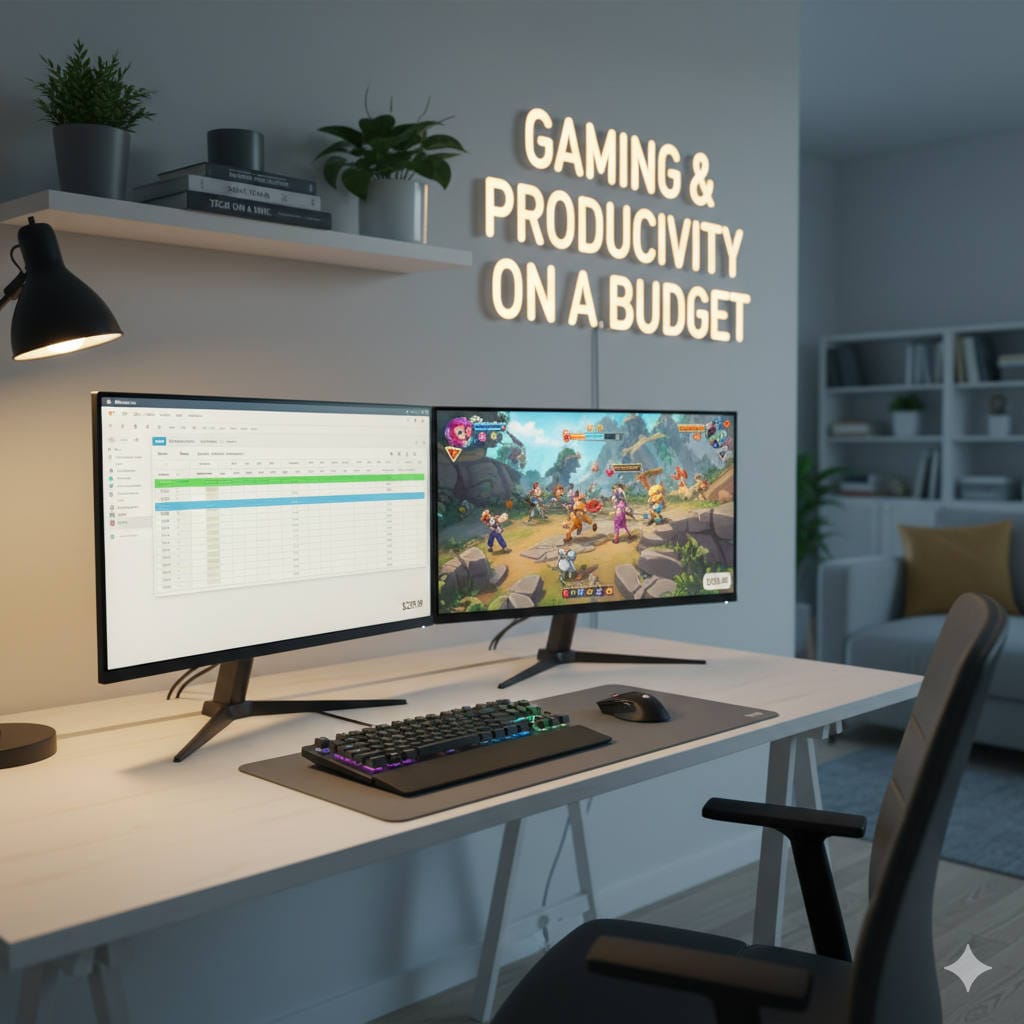
Setting up an efficient home office can be a rewarding yet challenging task, especially when working within a budget. One of the most essential investments for a productive workspace is a quality monitor that balances price with performance. Thankfully, in 2026, technology has advanced enough that you can get a fantastic monitor for under $300 that meets the needs of most home office environments.
This comprehensive guide explores some of the best budget-friendly monitors under $300, highlighting the key features you should look for, the benefits of each monitor, and how to choose the right one for your specific work needs. Whether you’re managing spreadsheets, attending virtual meetings, or creating content, you’ll find practical advice to help enhance your home office setup without breaking the bank.
Why a Good Monitor Is Crucial for Your Home Office
Today’s home office is more than just a desk and a chair. Your monitor plays a pivotal role in your productivity, comfort, and overall work experience. Here’s why investing in a good monitor matters:
- Visual Clarity: A monitor that offers sharp, clear text and images prevents eye strain and helps you focus during long work hours.
- Ergonomic Comfort: Adjustable stands and screens positioned at the right height reduce neck and back pain.
- Color Accuracy: Important for tasks that require detail, like graphic design, video editing, or any creative work.
- Multiple Connectivity Options: The ability to connect different devices easily adds convenience to your workflow.
- Screen Size and Resolution: Larger screens and higher resolutions make multitasking smoother with ample workspace for multiple windows.
With these factors in mind, finding a monitor under $300 that ticks all the boxes is entirely possible with today’s technology.
Key Features to Look for in a Budget Home Office Monitor
When shopping for a monitor without exceeding $300, it can help to prioritize these core features to maximize value and function:
1. Screen Size and Resolution
The sweet spot for most home office users is between 24 to 27 inches. This range delivers enough screen real estate to have multiple windows open simultaneously without overwhelming your desk space. As for resolution, Full HD (1920×1080) is standard and budget-friendly, but many affordable options now offer 1440p (2560×1440), which gives you crisper text and more workspace.
2. Panel Type
IPS panels are preferred for their superior color accuracy and wider viewing angles, which means consistent image quality even when looking at the screen from different angles. VA panels, although generally offering better contrast ratios, can have slower response times and narrower viewing angles but still perform well in darker settings. Choosing the right panel type depends on your specific needs.
3. Refresh Rate and Response Time
For general office work, a 60Hz refresh rate is sufficient. However, if your work involves fast motion visuals or gaming on the side, monitors offering 120Hz or higher can provide smoother performance. Faster response times reduce motion blur, which can also impact comfort during extended use.
4. Ergonomics
A monitor stand that offers height, tilt, swivel, and pivot adjustments allows you to customize your workspace ergonomically. This flexibility helps minimize strain on your neck, shoulders, and eyes, enabling more comfortable long sessions.
5. Connectivity
Ensure the monitor has multiple input options like HDMI and DisplayPort. USB-C ports are increasingly common and useful for connecting modern laptops with a single cable that handles video, data, and charging.
Top Budget Monitors Under $300 for 2026
AOC Q27G3XMN – The All-Rounder for Work and Entertainment
The AOC Q27G3XMN shines as an exceptional budget monitor that blends a 27-inch 1440p screen with Mini LED backlighting—an uncommon feature in this price range. This means you’ll get fantastic contrast and vibrant colors that are comfortable for both work tasks and casual entertainment.
- Display: 27-inch, 2560×1440 resolution with Mini LED backlighting
- Panel: VA panel delivering deeper blacks and better contrast
- Refresh rate: 180Hz, which is great for casual gaming or video work alongside office tasks
- Ergonomics: Basic stand with tilt adjustment
This monitor caters well to professionals who want a crisp, clear display without compromising on multimedia capabilities, all while staying budget-friendly.
Dell S3225QS – Crystal Clear 4K Productivity on a Budget
If your daily work relies heavily on detailed visuals or multitasking across many windows, the Dell S3225QS’s 32-inch 4K display offers stunning clarity and plenty of space. While this model is more tailored to office productivity than gaming, its large screen and sharp resolution transform your workspace, making it easier to handle complex tasks.
- Display: Generous 32-inch 3840×2160 resolution (4K UHD)
- Panel: VA panel with solid brightness and good contrast
- Refresh rate: 120Hz sufficient for smooth work interactions
- Ergonomics: Tilt and swivel options to fine-tune your viewing angle
With its expansive display and sharp visuals, this Dell monitor is perfect for professionals like designers, data analysts, and anyone who benefits from extra screen real estate without splurging.
MSI G274QPF-QD – Versatile Work and Play Display
Offering a 27-inch 1440p IPS panel, the MSI G274QPF-QD delivers a balance between work efficiency and gaming fun. Its quick refresh rate and vivid color range make it suitable for both office duties and immersive entertainment during downtime.
- Display: 27-inch, 2560×1440 resolution
- Panel: IPS for wide viewing angles and vibrant colors
- Refresh rate: 170Hz for smooth visuals
- Ergonomics: Adjustable stand for tilt, swivel, and height
This model is ideal for users who want a single screen for a mix of professional and personal use with excellent visuals and responsiveness.
Dell G2524H – Speed and Clarity on a Compact Screen
The Dell G2524H is a smaller, 25-inch Full HD monitor that impresses with its exceptionally fast 240Hz refresh rate. While its resolution is more basic, it’s perfectly suited for users who prioritize smooth motion and clear visuals for video calls, typing, and quick office tasks.
- Display: 25-inch, 1920×1080 resolution
- Panel: IPS panel for good color accuracy
- Refresh rate: 240Hz, ideal for fluid visuals
- Ergonomics: Basic adjustments, lightweight design
This monitor is a solid choice for those with limited desk space who want excellent responsiveness and clear picture quality without unnecessary frills.
Dell Alienware AW3225DM – Premium Performance for Under $300
While Alienware is known for premium gaming, the AW3225DM blends high performance with large 32-inch screen real estate, perfectly scaling for immersive work environments. With a rich VA panel and fast refresh rate, this monitor doubles as a powerhouse for productivity and entertainment.
- Display: 32-inch, 2560×1440 resolution
- Panel: VA panel providing deep blacks and vibrant images
- Refresh rate: 180Hz for smooth motion
- Ergonomics: Good adjustability for comfort
If your budget stretches close to the $300 mark, the Alienware AW3225DM is a compelling option that balances size, speed, and image quality to enhance both work and leisure.
Tips for Setting Up Your Home Office Monitor Ergonomically
Even the best monitor won’t do its job well if it’s not positioned correctly. To maintain comfort and productivity, keep these ergonomic principles in mind:
- Eye Level: Position the top edge of the screen at or slightly below your eye level to avoid neck strain.
- Distance: Ideally, keep your monitor about an arm’s length away—approximately 20 to 30 inches.
- Adjustable Stand or Mount: Consider a monitor arm or an adjustable stand that lets you customize height, tilt, swivel, and rotation.
- Lighting: Position your monitor to avoid glare from windows or overhead lights, or use a screen hood if needed.
- Blue Light Filter: Use built-in settings or software to reduce blue light exposure, which can reduce digital eye strain.
How to Choose the Right Monitor for Your Home Office
Selecting the best monitor under $300 for a home office comes down to understanding your work habits and space. Ask yourself:
- Do you need a higher resolution for detailed work or wide multitasking?
- Would you benefit from a larger screen or multiple smaller screens?
- Is color accuracy important for your work?
- Do you occasionally game or watch videos on the side?
- Do you have enough desk space to accommodate a larger monitor?
Answering these will guide you toward a monitor that fits the workflow and enhances productivity without overspending.
Final Thoughts
Finding the right budget monitor for your home office isn’t just about the sticker price—it’s about balancing functionality, comfort, and quality. The models listed here represent some of the best value options under $300 in 2026, from the versatile AOC Q27G3XMN to the precise Dell S3225QS 4K display, the responsive MSI G274QPF-QD, and the compact but quick Dell G2524H.
By focusing on features like resolution, panel type, refresh rate, ergonomics, and connectivity, you can elevate your home office experience significantly without exceeding your budget. Take the time to set your monitor up correctly to ensure comfort and maximize productivity.
Invest wisely, and your monitor will serve as an indispensable tool that helps you work smarter, not harder.