Just bought a new PC? Congratulations! But before you dive in, let’s talk about something important: your fresh computer needs the right software to actually be useful.
I’ve set up countless computers, and I’ve learned that the apps you install in the first hour determine whether you’ll love or hate your PC experience. Skip the wrong tools, and you’ll be fighting with your computer instead of getting work done.
This guide covers the ten software categories every PC owner needs, without the tech jargon or overwhelming details.
Windows comes with Edge, but you have better options. Your browser is where you’ll spend most of your time, so this choice matters.
Chrome works everywhere and syncs perfectly across all your devices. If you use Gmail or Google Drive, Chrome just makes sense.
Firefox keeps your browsing private and gives you serious customization options. It’s built by a nonprofit that actually cares about user privacy.
Brave blocks ads automatically, loads pages faster, and protects your privacy without any setup.
Pick one and install it first. You can always try others later.
2. Install Security Software Immediately
Windows Defender is decent, but dedicated security software catches threats that slip through. Think of it as insurance for your digital life.
Good antivirus runs quietly in the background. You shouldn’t notice it until it blocks something dangerous. Modern security suites also protect your webcam, scan downloads instantly, and warn you about sketchy websites.
Install this before you start downloading other software or visiting random websites.
3. Use a Password Manager
Let me guess: you use the same password everywhere, or maybe two passwords you alternate between. Everyone does it. It’s also how accounts get hacked.
Password managers fix this problem. They create impossible-to-guess passwords for every site and remember them for you. You memorize one master password, and that’s it.
They work on your phone, laptop, and tablet. When you visit a website, they fill in your login automatically. Some even alert you when your passwords show up in data breaches.
Setting this up takes 30 minutes and prevents countless headaches.
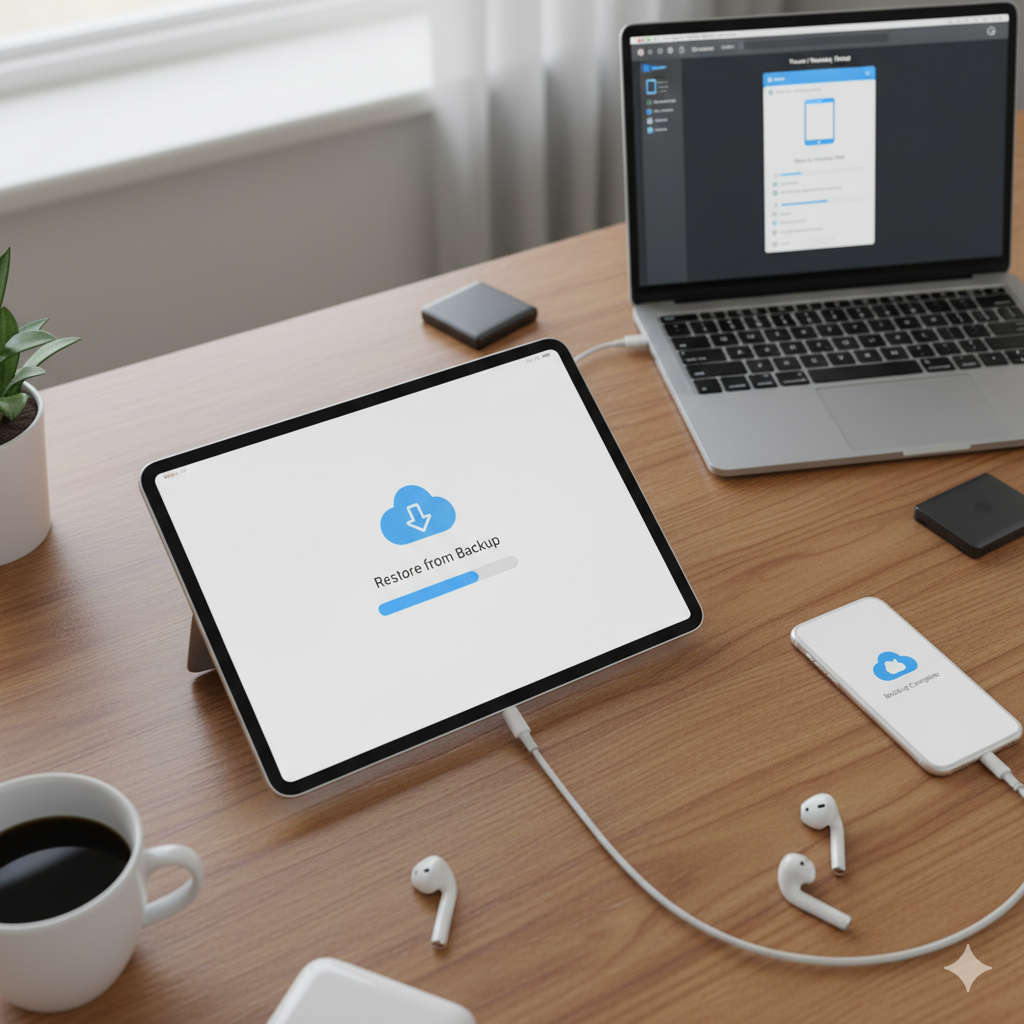
4. Set Up Cloud Backup Now
Your hard drive will eventually fail. That’s not pessimism, it’s statistics. Cloud storage means your important files survive when hardware doesn’t.
Most services give you 15GB free, which handles documents and photos easily. Everything syncs automatically, so you never think about backing up.
Bonus: you can access your files from anywhere and share large files without email limits.
Configure this today. Don’t wait until after you lose something important.
5. Choose Office Software
You need something for documents, spreadsheets, and presentations.
Microsoft Office is what businesses use. If you collaborate with others, it ensures everything looks right when you share files.
Google Workspace lives in your browser and excels at real-time collaboration. Multiple people can edit the same document simultaneously.
LibreOffice does everything the paid options do, costs nothing, and works offline.
Pick based on your workflow and budget.
6. Install a Real Media Player
Windows Media Player struggles with modern video formats. You’ll download a movie or music file and find it won’t play.
VLC solves this. It plays absolutely everything: any video format, any audio format, DVDs, streaming content. It’s free, never nags you to upgrade, and includes features like subtitle support.
Download it once and forget about codec problems forever.
7. Get Compression Software
You’ll constantly encounter ZIP, RAR, and 7Z files. Windows handles basic ZIP files but chokes on everything else.
7-Zip opens every compressed format you’ll encounter. It also creates smaller archives than Windows when you’re compressing files yourself.
Right-click any file or folder, and you can instantly compress or extract it.
8. Upgrade Your PDF Tools
Everyone sends PDFs. You need more than just viewing them.
Good PDF software lets you fill forms, add signatures, highlight text, and combine multiple PDFs. Digital signatures alone save enormous amounts of time by eliminating the print-sign-scan cycle.
Free options handle most tasks. Paid versions add features like converting PDFs to Word documents and extracting images.
9. Add System Maintenance Tools
Your computer collects digital junk: temporary files, unused programs running at startup, outdated registry entries. This clutter gradually slows everything down.
Maintenance utilities clean this mess automatically. They free up storage space, speed up boot times, and identify programs hogging resources.
Run cleanup monthly. Your PC stays fast instead of gradually degrading.
10. Get Screenshot Software
You’ll need to capture your screen more than you think: explaining tech problems, saving recipes, documenting issues for customer support, creating how-to guides.
Modern screenshot tools let you capture, annotate, and share instantly. Add arrows, text, and highlights before sending. Some include scrolling capture for long webpages and screen recording for video tutorials.
This seems minor until you actually need it, then it becomes indispensable.
How to Set Everything Up
Don’t randomly install software. Follow this order:
Start with security: Install antivirus and your password manager first, before browsing or downloading anything else.
Add daily essentials: Browser, office software, and cloud storage come next. These are tools you’ll use constantly.
Install utilities: PDF reader, media player, compression software, and screenshot tools round out your setup.
Clean up: Remove pre-installed bloatware and configure your startup programs.
This takes maybe two hours total. It sets you up for years of smooth computing.
Practical Tips That Actually Help
Keep it lean: More software isn’t better. Every program consumes resources and needs maintenance. Only install what you actually use.
Enable automatic updates: Security patches matter. Let software update itself so you’re always protected.
Try before buying: Most paid software offers free trials. Test thoroughly before spending money.
Document your setup: Screenshot your important settings. When something breaks or you get a new computer, you’ll remember exactly how everything was configured.
Free vs Paid: What You Actually Need
Here’s the truth: free software has gotten really good. For most people, free tools handle everything perfectly.
Consider paying when:
You need professional features
You use the software every single day
You want proper customer support
You’re running a business
Skip paid versions when free options do the job without crippling limitations.
Common Setup Mistakes
Installing everything: You don’t need six different screenshot tools. Pick one, learn it well, move on.
Ignoring configuration: Installing software is half the job. Spend ten minutes setting preferences to match how you work.
Forgetting maintenance: Software needs updates. Schedule time quarterly to update everything and remove tools you stopped using.
Using default passwords: If software asks you to create an account, use your password manager to generate a strong unique password.
Keep Your System Current
Set reminders to review your software every few months. Remove programs gathering dust. Update everything to the latest versions. Look for better alternatives that have emerged.
Technology moves fast. The best tool last year might have serious competition now.
The Bottom Line
Your new PC needs these ten software categories to function properly. Security software and a password manager protect you. Cloud backup protects your files. Office software, browsers, and utilities make you productive.
The setup process takes a couple hours. That’s it. You’re then equipped for years of computing.
Start with this foundation, then add specialized tools as you discover specific needs. Photographers need image editors. Programmers need development tools. Gamers want performance monitors.
Pay attention to what frustrates you. When you think “there has to be an easier way,” research solutions. The right tool probably exists.
Take time to set up your PC properly now. An hour today saves hundreds of hours over the computer’s lifetime. That’s the best investment you can make in your new machine.
Quick Checklist
[ ] Security software installed
[ ] Password manager set up
[ ] Cloud backup configured
[ ] Browser installed and synced
[ ] Office software ready
[ ] Media player installed
[ ] Compression tool added
[ ] PDF reader configured
[ ] Maintenance utility installed
[ ] Screenshot tool ready
[ ] Bloatware removed
[ ] Automatic updates enabled
Check these off, and you’re good to go. Your PC is now properly equipped and ready for whatever you throw at it.