If you’ve ever tried shopping for a monitor, you know how quickly things get complicated. What should be a simple choice turns into a tech jargon maze — refresh rates, IPS vs VA, HDR levels, pixel density, and ports you didn’t even know existed.
The truth? Your monitor is arguably the most important piece of equipment in your setup. You’ll look at it for hours every single day — whether you’re running a business from home, working remotely, editing creative projects, or winding down with a good movie or a game.
Pick the wrong one, and you’ll deal with fuzzy text, cramped screen space, poor colors, and possibly even neck or eye strain. Pick the right one, and your work will feel smoother, your posture better, and your entertainment more immersive.
This guide will walk you through:
- Which specs actually matter (and which you can ignore)
- How to choose the right monitor for your needs
- The best monitors for 2026, from budget to premium, in every category
- Setup tips to get the most from your screen
- Mistakes to avoid so you don’t waste money
Let’s start with the basics.
Why Your Monitor Choice Really Matters
A monitor is more than just a screen — it’s the window into your digital life. Here’s why spending time on this decision pays off:
- Eye Comfort – A well-designed monitor with proper brightness, flicker-free technology, and anti-glare coating reduces fatigue during long workdays.
- Boosted Productivity – Extra resolution or a larger screen lets you keep multiple apps open without constant tab-switching.
- Accurate Color – Essential for designers, video editors, and photographers who can’t afford guesswork.
- Better Posture – An adjustable stand or monitor arm helps you keep your neck and back in a healthy position.
- Improved Entertainment – A quality monitor makes movies sharper, games smoother, and streaming more enjoyable.
Monitor Specs — What to Pay Attention To
Technical terms can be intimidating, so let’s break them down in plain English.
1. Resolution
Resolution determines how sharp your monitor looks.
- 1080p (Full HD) — Best for screens up to 24 inches. Affordable and easy to run on most computers.
- 1440p (Quad HD) — Ideal for 27 inches; sharper than 1080p without the heavy graphics demand of 4K.
- 4K (Ultra HD) — Extremely sharp and great for 27–32 inches or larger. Perfect for detailed design and video work.
2. Panel Type
Your panel type affects colors, contrast, and viewing angles.
- IPS — Excellent color accuracy and wide angles. Best all-round choice for work and creative tasks.
- VA — Deeper blacks and contrast; great for movies.
- TN — Very fast, but weaker colors. Mostly for competitive gaming.
3. Refresh Rate
Measured in Hertz (Hz), it’s how many times the image refreshes per second.
- 60Hz — Standard for office work and most tasks.
- 120Hz+ — Smoother motion for gaming and scrolling; nice but not essential for pure office use.
4. Color Gamut & Accuracy
- 99% sRGB — Good for everyday work.
- Adobe RGB / DCI-P3 — Needed for professional design and video.
5. HDR (High Dynamic Range)
True HDR can make colors pop and shadows richer — but many monitors advertise HDR without meeting brightness requirements (look for 400+ nits brightness for noticeable impact).
6. Ergonomics
Height, tilt, swivel adjustments, and VESA mount compatibility all matter for comfort.
7. Ports
- USB-C with power delivery — Perfect for laptop docking with a single cable.
- DisplayPort — Best for high refresh rates.
- HDMI — Common and versatile.
- USB Hub — Lets you plug peripherals directly into the monitor.
8. Aspect Ratio
- 16:9 — Standard.
- 21:9 (Ultrawide) — Great for multitasking.
- 32:9 (Super-ultrawide) — Equivalent to two 16:9 monitors side-by-side.
Best Monitors of 2026 — By Category
Here are my top recommendations for this year, split into budget, mid-range, and premium picks for every type of user.
1. Best All-Rounder (Home & Office)
Budget — ASUS ProArt Display PA278QV
- 27″ / 1440p IPS / 75Hz
- Factory-calibrated colors, ergonomic stand, and USB hub.
- Great for both work and light creative use.
Mid-Range — Dell UltraSharp U2723QE
- 27″ / 4K IPS Black / 60Hz
- Excellent contrast, USB-C (90W charging), top-tier build quality.
Premium — Eizo FlexScan EV3895
- 37.5″ / 3840×1600 ultrawide / IPS
- Massive workspace, flawless calibration, Ethernet passthrough.
2. Best Budget Monitors for WFH
Budget — AOC 24G4
- 24″ / 1080p IPS / 144Hz
- Affordable, sharp, and smooth — works for casual gaming too.
Mid-Range — ViewSonic VA2432-H
- 24″ / 1080p IPS / 75Hz
- Simple, eye-friendly design at a fair price.
3. Best Ultrawides for Multitasking
Budget — LG 34WN650
- 34″ / 2560×1080 IPS / 75Hz
- Affordable entry-level ultrawide for side-by-side work.
Mid-Range — LG 34WN80C
- 34″ / 3440×1440 IPS / USB-C
- Crisp resolution and curved screen for immersive multitasking.
Premium — Dell UltraSharp U4025QW
- 40″ / 5120×2160 IPS Black / 120Hz
- Immense, sharp workspace with deep contrast.
4. Best for Creative Professionals
Budget — BenQ PD2706U
- 27″ / 4K IPS / 60Hz
- Factory-calibrated with excellent color coverage.
Mid-Range — ASUS ProArt PA32DC
- 32″ / 4K OLED / 60Hz
- OLED brilliance with true blacks and vivid colors.
Premium — Eizo ColorEdge CG319X
- 31.1″ / 4K+ IPS / 60Hz
- Built-in calibration hardware, industry gold standard.
5. Best Hybrid (Work + Gaming)
Budget — Gigabyte M27Q
- 27″ / 1440p IPS / 170Hz
- High refresh, sharp, with KVM switch for multiple devices.
Mid-Range — LG 27GP850
- 27″ / 1440p Nano IPS / 180Hz
- Superb colors and smooth motion.
Premium — Alienware AW3423DW
- 34″ / 3440×1440 QD-OLED / 175Hz
- Deep blacks, wide colors, immersive curve.
6. Best 4K for Office & Media
Budget — Philips 288E2E
- 28″ / 4K IPS / 60Hz
- Affordable sharpness for text and media.
Mid-Range — LG 27UP850
- 27″ / 4K IPS / USB-C
- Excellent colors, simple laptop docking.
Premium — Dell UltraSharp U3223QE
- 32″ / 4K IPS Black / 60Hz
- Large, vibrant, and beautifully built.
7. Best Portable Monitors
Budget — ASUS ZenScreen MB16AC
- 15.6″ / 1080p IPS / USB-C
- Lightweight and travel-friendly.
Mid-Range — Lenovo ThinkVision M14t
- 14″ / 1080p IPS touchscreen
- Great colors, pen input support.
Premium — ASUS ProArt PA148CTV
- 14″ / 1080p IPS, factory-calibrated
- Built for creatives who need accuracy on the go.
Setting Up Your Monitor for Comfort & Productivity
A great monitor still needs a good setup:
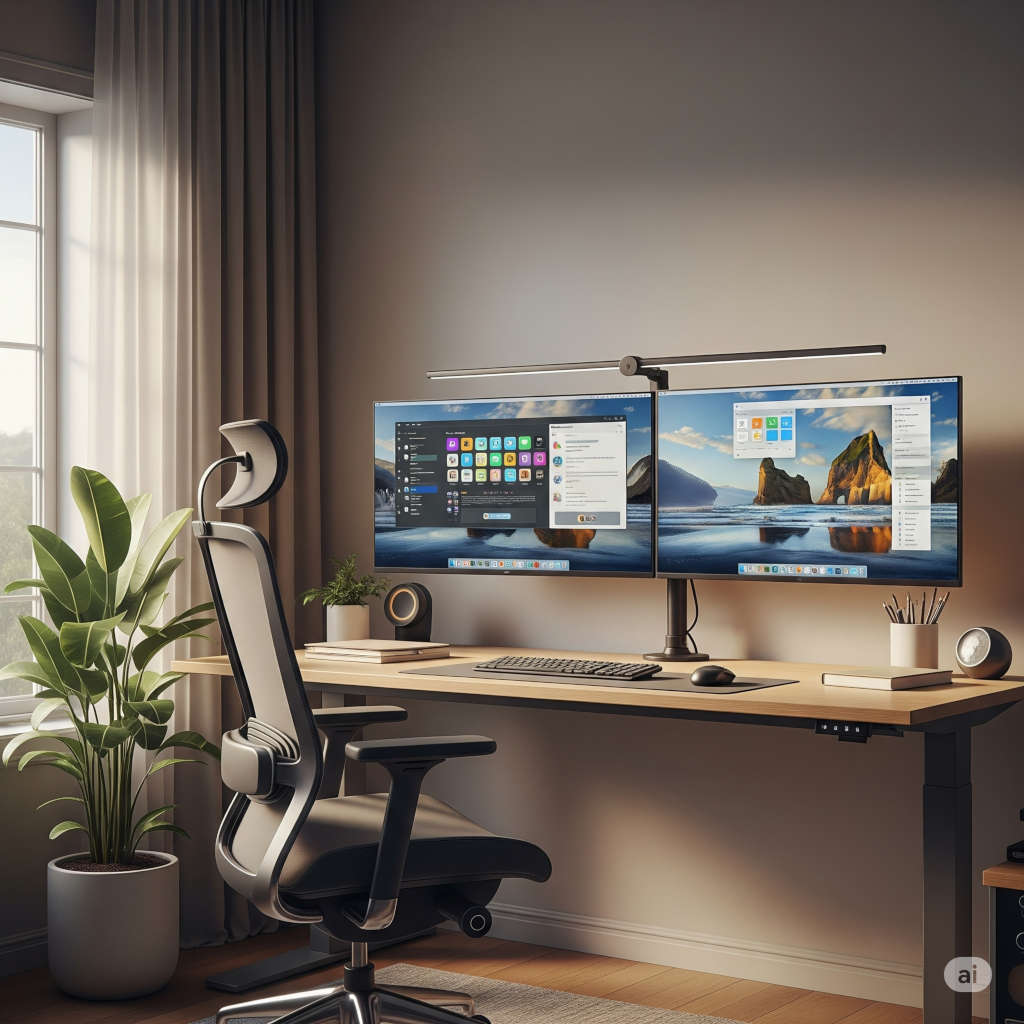
- Positioning — Top edge at or just below eye level; about an arm’s length away.
- Calibration — Adjust brightness and color; creatives should use a hardware calibrator.
- Cable Management — Use clips or a monitor arm to keep your desk clean.
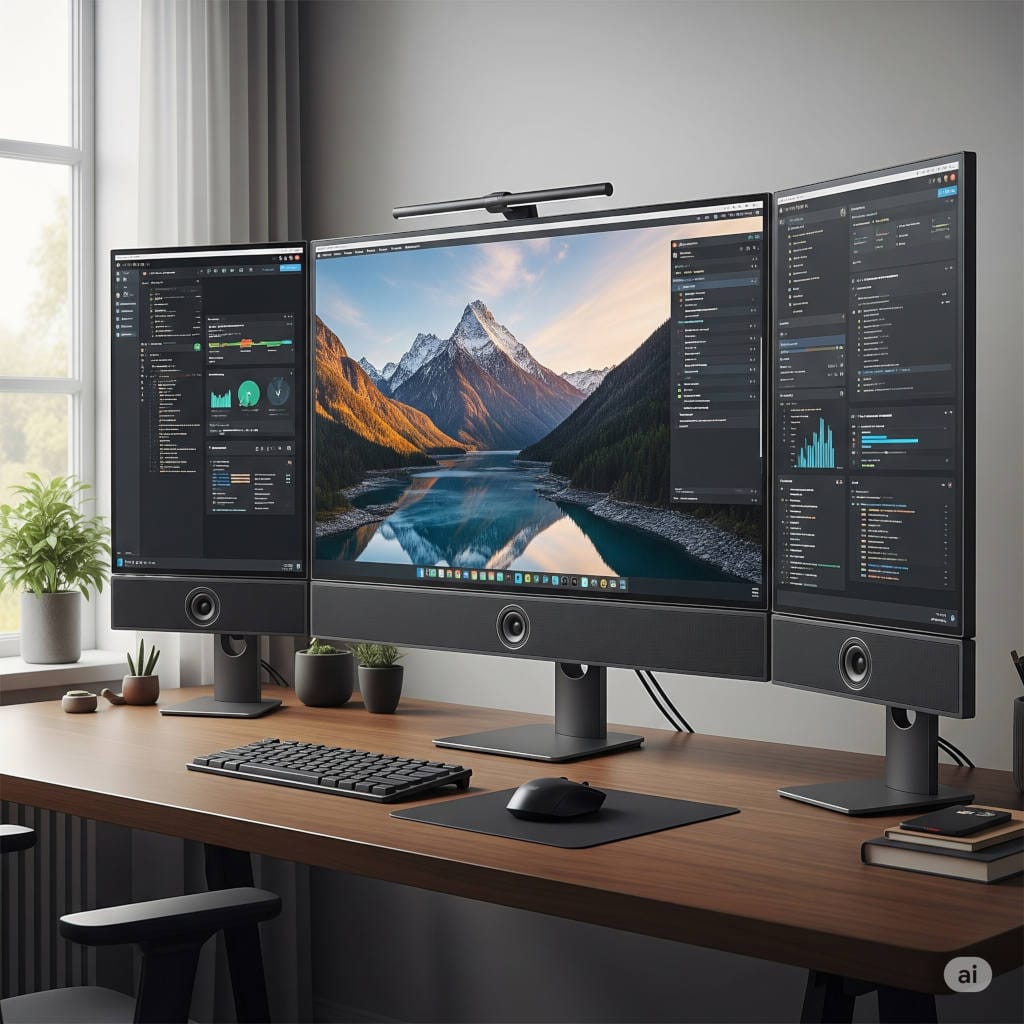
- Multiple Monitors — Place your main monitor in front, secondaries angled slightly toward you.
Quick Buying Checklist
Before hitting “buy,” ask:
- Does it fit my main use case?
- Is the resolution right for its size?
- Does it have the ports I need?
- Is it adjustable or VESA-compatible?
- Does it offer the color accuracy I need?
- Is the warranty reasonable?
Common Mistakes to Avoid
- Buying too big without enough resolution (blurry text).
- Ignoring ergonomics.
- Falling for fake HDR claims.
- Overpaying for refresh rates you won’t use.
- Skipping calibration for color-critical work.
Final Thoughts
Choosing the right monitor isn’t about chasing the highest specs — it’s about finding the perfect fit for your daily needs. For most people, a 27″ 1440p IPS is the sweet spot for home and office work. Add USB-C if you use a laptop, and ensure it’s adjustable for comfort.
If budget allows, moving to 4K or ultrawide can unlock serious productivity gains, especially if you spend long hours juggling multiple apps.
Whether you’re a budget-conscious remote worker, a creative pro, or a gamer who works from the same desk, there’s a perfect 2026 monitor on this list for you.