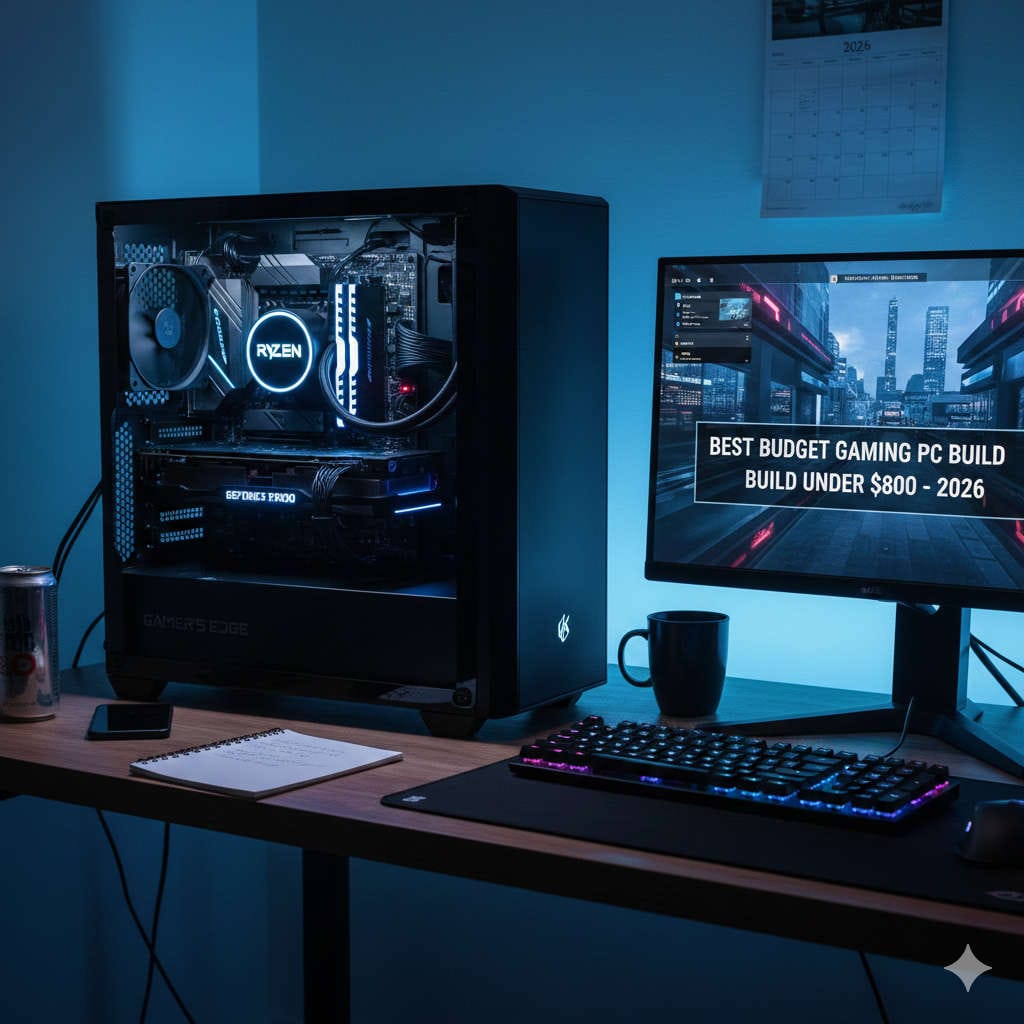
Excited about your brand-new PC? Whether it’s a high-end gaming beast or a sleek workstation, that fresh-out-of-the-box feeling is awesome. But to truly know if it’s performing at its best, you need to run some benchmarks. Benchmarking isn’t just for pros—it’s a straightforward way to check if your hardware is hitting its potential, spot any issues early, and even guide future tweaks. In this friendly guide, we’ll walk you through the process in simple steps, using the most reliable and popular tools available right now in late 2025. Let’s make sure your rig is running like a champ!
Benchmarking gives you real insights into how your system handles tough tasks. It’s like a fitness test for your computer—revealing strengths and any weak links. Here’s why it’s worth your time:
Confirm everything works perfectly: Catch faulty parts or installation hiccups before they cause problems.
Identify bottlenecks: See if your super-fast GPU is held back by slower RAM or storage.
Establish a baseline: Track performance over time or after upgrades.
Optimize for your needs: Whether gaming, editing videos, or everyday work, know exactly what you’re working with.
Peace of mind: Ensure you’re getting the value from your investment.
Skipping this could mean running at less than full speed without realizing it. A quick session now saves frustration later.
What Exactly Is PC Benchmarking?
Benchmarking runs controlled tests that push your components—CPU, GPU, RAM, and storage—to measure their speed and stability. There are synthetic tests (standardized for easy comparisons) and real-world ones (using games or apps you actually use). Combining both gives the fullest picture.
Focus on these key areas:
CPU: For processing power in multitasking or creative work.
GPU: Critical for graphics, gaming, and rendering.
Storage: Boot times, loading speeds, and file transfers.
Overall system: How everything plays together in daily scenarios.
Best Benchmarking Tools for 2026
Luckily, there are excellent free (and some paid) tools that are easy to use. Here’s my top recommendations based on what’s popular and effective this year:
Cinebench 2024: The go-to for CPU (and now GPU) testing. It uses realistic rendering tasks to score single- and multi-core performance.
3DMark: Perfect for graphics cards, with tests like Steel Nomad and Time Spy that simulate modern games. The free version covers basics beautifully.
CrystalDiskMark: Simple and fast for checking your SSD or HDD speeds—essential for confirming those blazing-fast claims.
Geekbench 6: Cross-platform CPU and GPU benchmarks, great for quick comparisons.
UserBenchmark: A one-click all-in-one test for CPU, GPU, RAM, and storage, with easy rankings against similar setups.
AIDA64 or OCCT: For in-depth stress testing to check stability under heavy load.
Always grab these from official sites, and update your graphics drivers first for the most accurate results.
Step-by-Step Guide to Benchmarking Your PC
Let’s get testing! This process takes about an hour or two. Monitor temperatures with free tools like HWMonitor to stay safe—keep CPU/GPU under 90°C.
1. Prepare Your System
Close extra programs, update Windows and drivers, and ensure good airflow. Plug in laptops to avoid power limits.
2. Test Your CPU
Start with Cinebench 2024. Run the multi-core test (for heavy workloads) and single-core (for everyday responsiveness). Note your scores and compare online for your CPU model.
3. Benchmark the GPU
Use 3DMark’s Steel Nomad or Time Spy for realistic gaming simulations. Watch for smooth runs and high scores. Add in-game benchmarks from your favorites for real-world feel.
4. Check Storage Speeds
Run CrystalDiskMark—look for high sequential reads/writes (over 5000 MB/s for good NVMe drives).
5. Full System and Stress Tests
Try Geekbench or UserBenchmark for an overall score. Then stress test with AIDA64 or OCCT for 20-30 minutes to ensure no crashes or overheating.
Repeat tests 2-3 times and average results for accuracy.
Understanding and Acting on Your Results
Scores vary by hardware, so compare to similar systems online. If yours are lower than expected:
Check temperatures—throttling from heat is common; improve cooling.
Enable XMP in BIOS for full RAM speeds.
Update BIOS or reseat components.
Real-world tests matter most—if games and apps feel snappy, you’re good!
Tips to Push Your PC Further
Safe overclocking: Use tools like MSI Afterburner for GPU gains, but test stability.
Keep it clean: Dust-free and updated for consistent performance.
Re-benchmark regularly: After changes or every few months.
If issues persist: Forums like Reddit’s buildapc are gold for advice.
Final Thoughts
Benchmarking your new PC is empowering—it turns guesswork into knowledge, helping you enjoy peak performance. Follow these steps, and you’ll have a solid foundation for years of smooth computing. What’s your first test going to be? Drop your scores or questions in the comments—I’d love to hear how it goes!
Quick FAQ
How often should I benchmark? After building, upgrades, or if things feel off.
Is it safe? Yes, with temperature monitoring—stop if things get too hot.
Free tools enough? Absolutely for most people.
Happy testing—here’s to unlocking your PC’s full power!