Nobody sits down and designs a bad home office on purpose. It just sort of happens. You put a laptop on the dining table for “a few days” while you figure things out, and two years later you’re still there, wondering why your neck feels like it’s been in a headlock since 2 p.m.
That’s the thing about a poor ergonomic setup: it doesn’t hurt right away. It builds slowly, in the form of a stiff neck by Wednesday, a knot between your shoulder blades that your partner keeps offering to rub, or wrists that feel tight after a long day of typing. By the time it’s bad enough to notice, the habits causing it are already baked into your day.
The fix isn’t an expensive chair, though a good one helps. It’s getting your body, your equipment, and your daily habits pointed in the same direction, so good posture is just what happens by default instead of something you have to remember to do. Below is a practical, no-fluff walkthrough of how to actually do that, along with a few real product picks if you’re ready to upgrade.
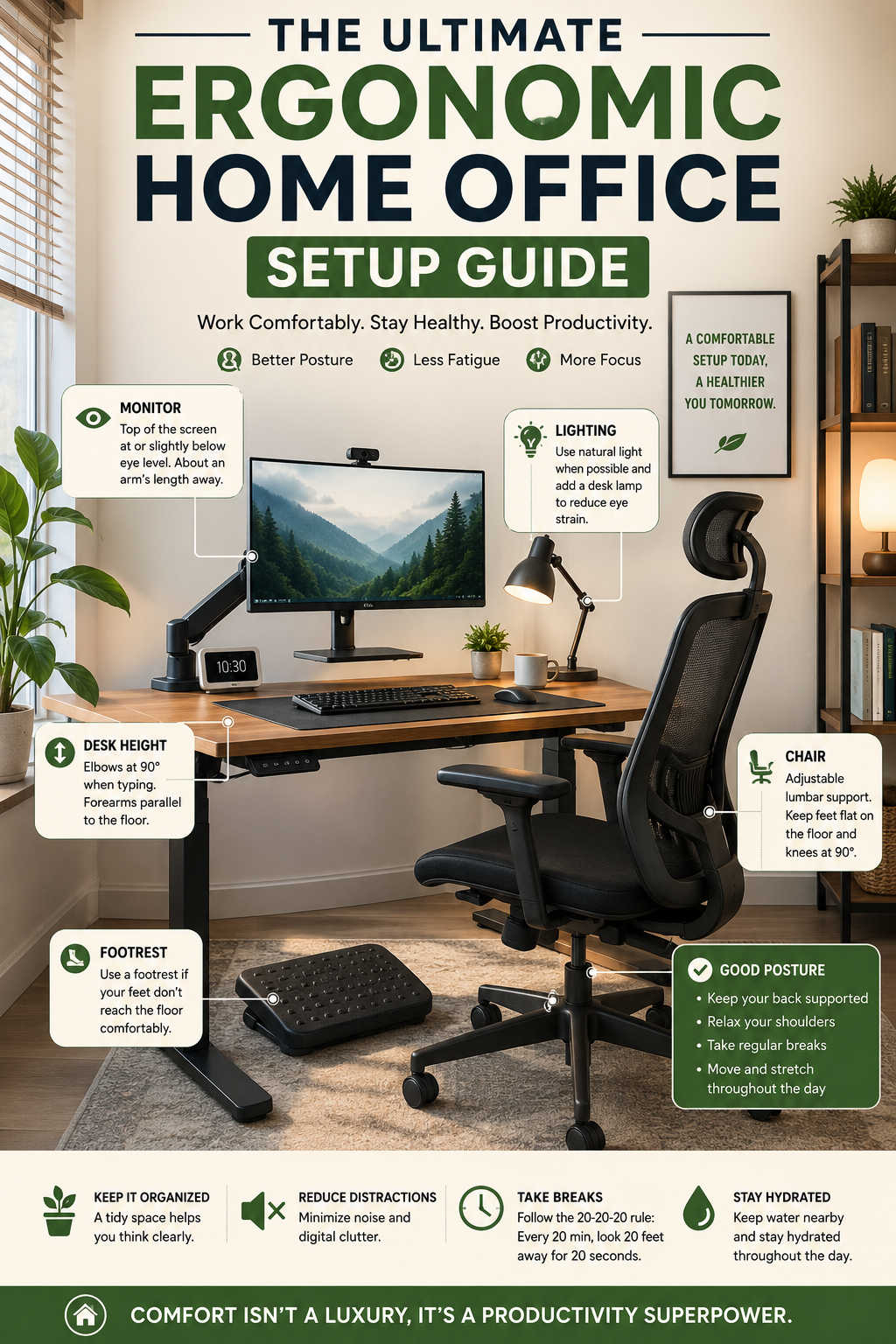
Everything about your posture starts with what you’re sitting on, so this is the first thing worth getting right. A properly fitted ergonomic office chair supports the natural inward curve of your lower back, lets your feet rest flat on the floor with your knees near a 90-degree angle, and keeps your elbows close to your body at desk height.
You don’t need the most expensive chair in the catalog — you need one that adjusts to your body. At minimum, look for independent control over seat height, lumbar depth, and armrest height. If your feet dangle even after the seat is at the right height for your knees, a footrest solves that instantly without needing a different chair. And if a full ergonomic chair isn’t in the budget this month, a firm cushion plus a rolled towel behind your lower back can noticeably improve an ordinary chair in the meantime.
Worth considering, across a few budgets:
Entry-level: The Branch Ergonomic Chair Pro and FlexiSpot ErgoX both offer real adjustable lumbar support and 3D armrests without a premium price tag — solid options if this is your first “actual” office chair.
Mid-range: The Steelcase Series 1 brings genuine contract-office engineering, including weight-activated recline that adjusts tension automatically, into a price range a home office budget can absorb.
Premium: The Herman Miller Sayl and Steelcase Series 2 are frequently recommended for long, multi-hour workdays, thanks to adjustable lumbar systems that move with your body instead of holding you in one fixed position.
Get Your Monitor to Eye Level
Neck strain is one of the most common home office complaints, and it almost always comes down to one thing: the screen is too low. When a laptop sits flat on a desk, you end up tilting your head down for hours at a stretch, which pulls on the muscles at the base of your skull and across your upper back.
The fix is simple in theory: the top of your screen should be roughly at or just below eye level, about an arm’s length away. For a laptop, that means a stand (or honestly, a sturdy stack of books) paired with an external keyboard and mouse, so your hands aren’t cramped underneath a raised screen. For a separate monitor, a monitor arm makes it easy to fine-tune height and distance as your tasks change through the day — and it frees up the desk space the factory stand was hogging.
A couple of solid picks:
Budget-friendly: The Wali Single Premium Spring arm covers a surprisingly wide height range for under $50 and supports monitors up to 32 inches.
The reliable standard: The Ergotron LX is the arm most ergonomics guides come back to — smooth gas-spring movement, sturdy build, and enough adjustability to fit almost any desk setup.
Keep Your Wrists in a Neutral Position
Wrist pain tends to sneak up on people, usually because the keyboard and mouse sit too high or too far away. You’re aiming for a neutral wrist position — forearms roughly parallel to the floor, wrists not bent sharply up, down, or to either side while typing.
Positioning your keyboard and mouse at elbow height, on a desk (or keyboard tray) low enough that your shoulders can relax instead of hiking up toward your ears, handles most of this. A wrist rest can help during pauses, but resist the urge to type while your wrist is resting on it — pressing down on a hard surface while your fingers move actually increases pressure on the carpal tunnel, which works against you.
If you type for long stretches and notice tension building:
Easiest transition: The Logitech Wave Keys has a gentle wave layout and a memory foam palm rest, with essentially no learning curve if you’re coming from a standard keyboard.
More correction, more commitment: The Kinesis Freestyle2 physically splits the keyboard in two, so each hand can sit at a natural shoulder-width angle — a bigger adjustment period, but a meaningful one for people already dealing with wrist discomfort.
Let Lighting Do Some of the Work
Lighting gets overlooked constantly, but bad lighting contributes directly to eye strain, headaches, and the kind of fatigue that makes good posture feel like extra effort. Natural light is great when you have it — just position your desk so the window is to the side of your monitor, not behind or directly in front of it, to avoid glare and screen-versus-window contrast.
For evening work or darker rooms, a desk lamp with adjustable brightness and a neutral or warm-white tone reduces the harsh contrast between a bright screen and a dim room, which is a bigger contributor to eye fatigue than most people realize. Smart bulbs that shift color temperature through the day are a small, worthwhile upgrade — cooler and brighter in the morning, warmer as the evening winds down, mimicking how daylight naturally changes.
Build Movement Into Your Day
Even a perfectly dialed-in desk can’t fully offset eight straight hours of sitting still. Your body is built to move, and long stretches of stillness slow circulation and stiffen joints in a way that no amount of good posture alone can prevent.
A standing desk converter is one option — it lets you alternate between sitting and standing throughout the day rather than defaulting to one position for hours. Beyond that, small and frequent breaks matter more than people expect: standing up every 30 to 45 minutes, even just to refill your water glass, resets your posture and circulation better than stretching alone ever will. A few neck, shoulder, and wrist stretches, done consistently rather than occasionally, will do more for you than an expensive chair used without any movement at all.
Frequently Asked Questions
What is the most important piece of an ergonomic home office setup? If you can only fix one thing, fix your chair and monitor height first. Together they resolve the majority of common complaints — lower back pain from unsupported sitting, and neck strain from looking down at a screen.
How high should my monitor be for good posture? The top of the screen should sit at or just slightly below your eye level when you’re sitting up straight, roughly an arm’s length away from your face.
Do I really need an ergonomic chair, or will any office chair do? Any chair beats none, but the key features to look for are adjustable lumbar support, seat height, and armrest height. A cheap chair with zero adjustability will eventually cause the same problems a dining chair does — it just takes a little longer.
Can a standing desk fix bad posture on its own? Not by itself. Standing all day creates its own strain if your monitor and keyboard aren’t at the right height for standing too. The real benefit comes from alternating between sitting and standing, not from picking one position and sticking with it.
How often should I take breaks during a workday? Aim to stand up and move for a minute or two every 30 to 45 minutes. It sounds small, but it does more for circulation and posture than most people expect from such a short break.
Is it worth buying a split or ergonomic keyboard? If you type for more than a few hours a day and notice wrist or forearm tension, yes — it’s one of the higher-impact upgrades you can make. If you don’t type much or haven’t noticed any discomfort, a standard keyboard positioned correctly is usually enough.
The Bottom Line
An ergonomic home office isn’t one big purchase — it’s a handful of smaller adjustments that add up. Start with your chair and monitor height, since those two changes alone solve most of the common complaints. Then layer in wrist positioning, better lighting, and a habit of regular movement. The end goal is a setup that fades into the background of your workday, where your body isn’t fighting your furniture and your focus stays on the work instead of the ache in your shoulder.